
What is the Dashboard? – A Complete Guide

The Dashboard in Prodio is Your Control Center!
The Dashboard is your control center, allowing you to quickly access key information about manufacturing, workers, and orders. It helps you manage everything in one place – quickly, conveniently, and efficiently! 😊
🔍 What Do You See When You Open the Dashboard?
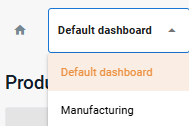
1.Dashboard Selection (top left corner)
You can switch between different dashboards, such as Default dashboard or Manufacturing dashboard.
If you have a separate dashboard for the office, you can display only administrative-related modules, such as upcoming absences or user activity, making it easier to manage daily office tasks.
2.Refresh Button (top right corner)
An auto-refresh option every 3 minutes – you can enable or disable it based on your needs.
Useful when displaying the dashboard on a large screen, so the data stays updated without manual refreshes, ensuring real-time monitoring of operations and workers activity.
3."AJUST" Button
Modify the dashboard layout by adding, removing, or rearranging modules.
For example, you can remove the machine workload module or change the order of displayed modules.
You can even create a completely new dashboard tailored to your needs.

📚 Dashboard Structure: Modules, Sections, and Dashboards
Modules
Small information panels displaying data about machines, workers, recent operations, and more. Each module can be customized and placed where it’s most useful.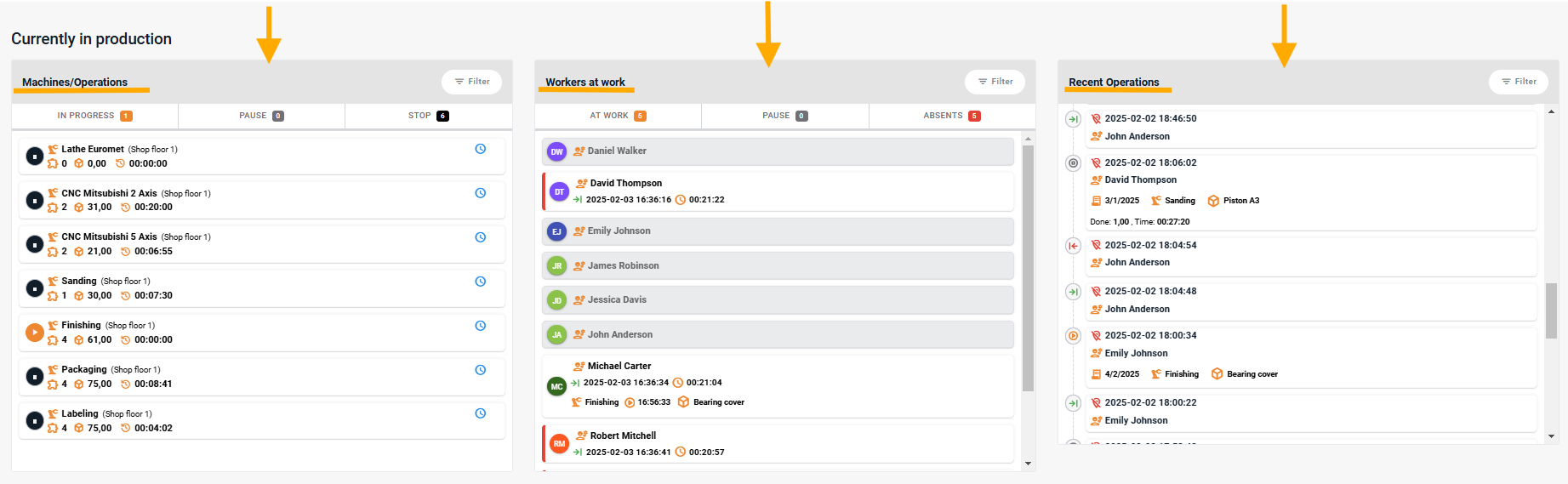
Sections
Groups of related modules. For example, a section called "Office & Administration" may contain days off, users activity, and order modules.
Section called Currently in production may look like this: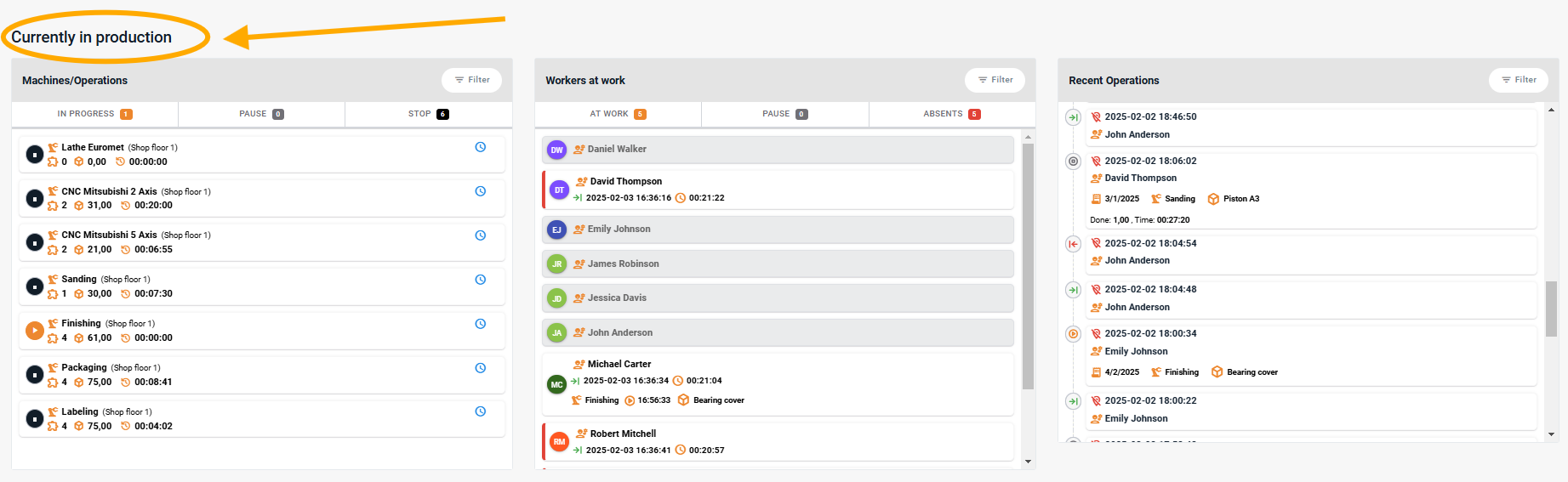
Dashboards
A collection of sections and modules designed for different departments (e.g., office, production). An office dashboard with orders and upcoming absences helps streamline daily operations.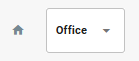
📌 What CanYou Find on the Dashboard?
Machines and Operations List
Monitor real-time production – see who is working, what tasks are in progress, and which machines are currently operating.
Workers at Work
Track who is currently working, their working hours, and who has yet to start their shift.
Recent Operations
Advanced tracking of production progress – see real-time updates on who is working on what, including break times and reasons for pauses.
Production in Numbers
Key performance indicators (KPIs) – alerts for deviations are highlighted in red so you can immediately spot issues.
Upcoming Absences
Quickly check planned workers absences – who has a day off today and who will be off soon.
Orders
Stay on top of orders with less than 7 days until the deadline, ensuring on-time delivery.
User Activity
Track changes made by users, including new orders, order modifications, and messages sent in the system.
Defective Products
See details about production errors, including when they happened, in which operation, and for which order.
Exceeded Estimated Time
⏳ Check which jobs took longer than expected so you can address issues proactively.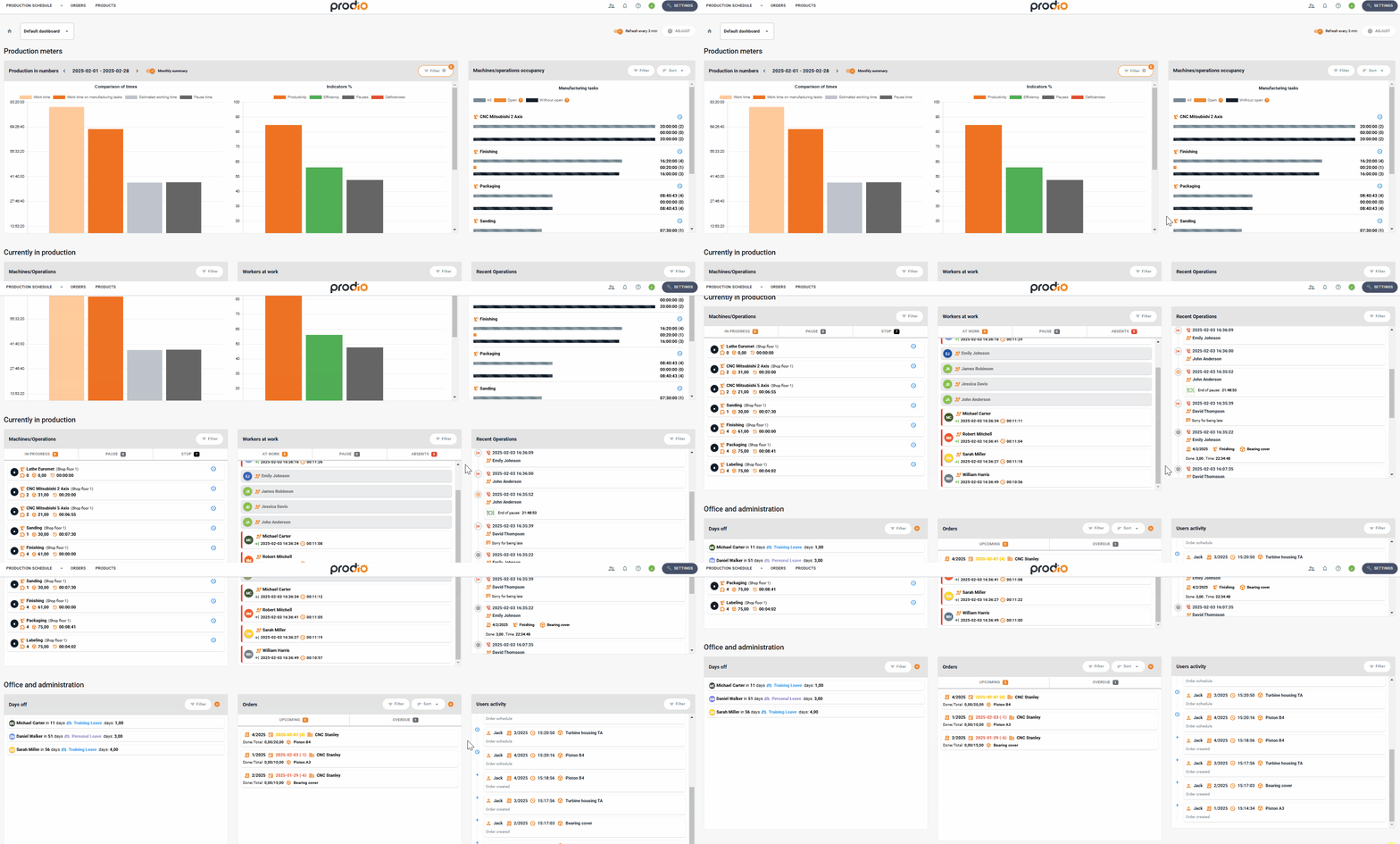
🌍 How to Navigate the Dashboard?
Switching Dashboards
✔️ Select the desired dashboard in the top left corner.
Browsing Modules
✔️ Scroll to view more information.
✔️ Quickly find relevant data about machines, workers, and orders.
Filtering Data
✔️ Use filtering options in various modules, such as date, status, or worker.
✔️ In the Orders module, filter by specific customers to see only their orders.
Editing and Adding Information
✔️ Click on a module entry to access detailed views, edit options, or add new data.
✔️ This gives you full control over order and operation changes.
Customizing Dashboards
✔️ Use the "Adjust" button to rearrange modules, create new dashboards, or update existing ones.
✔️ You can design dashboards for production, office, or analytics teams based on specific needs.
High five 🙋♀️ - team Prodio!
Prodio is a user friendly production planning software for small manufacturers