
Vacation Calendar, known as the "Days Off" tab 🧳

Let me walk you through how the "Days Off" tab works.
First, where can you find it? Let me show you. 😃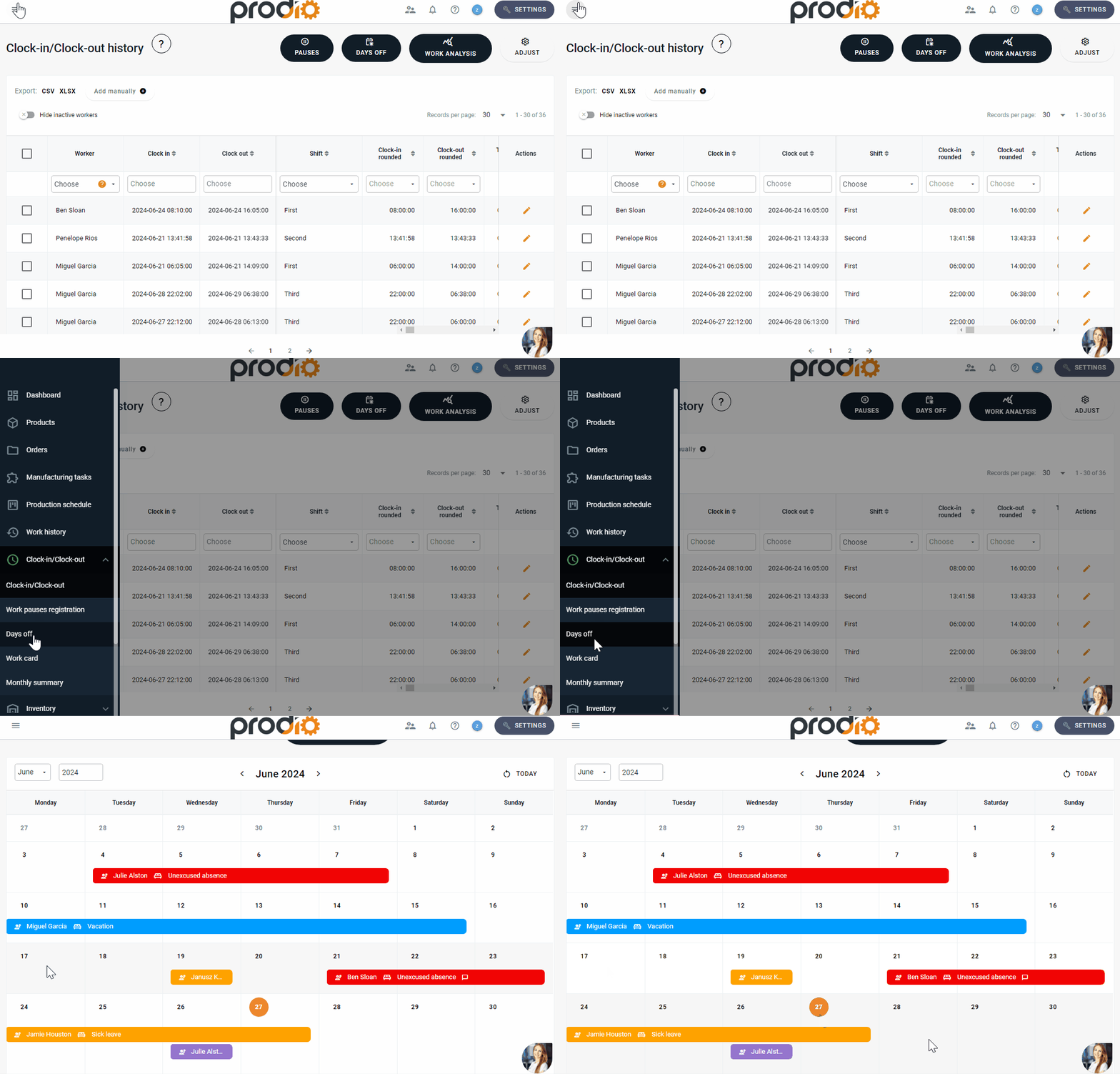
You can also access it easily from the "Clock-in/Clock-out" tab by clicking the button in the top right corner:

What will you see there? 🔍
With the "Days Off" option, you can quickly see who is on PTO, sick leave, or absent without reason on any given day. All this data is listed on the calendar—no complicated spreadsheets. 😃
If you prefer a different view, you can switch to a table view. 😎

When a worker reports sick leave, you can simply click the button 
A table titled "New day off" will appear.

From there, you can enter details like worker, reason, start date, end date, and even add notes and accounting comments. 📝

You can also specify whether the absence is for the whole day or just a few hours using the "All Day" button. Below that, you'll find an "Ignore Weekends" button if you don't want weekends counted as days off. 😀

There's also a "Since the beginning of the year" section, showing how much leave the worker has used, like sick leave or PTO.

Notes you add for a day off will immediately show on the calendar—no need to check "Edits" for them to appear. 📝

You'll also see who entered the absence info:

And of course, you can get creative with option

In the "Table" tab, you can change column order visibility. In "Form Fields" personalize day off types and choose colors—like showing "Unexcused Absence" in red. ❗

That way, it shows up in red on the calendar.

What's the benefit?
The "Days Off" option lets you check who's absent with just one click. If a worker PTO requests, you'll know when they last took time off and how much they've used. You can respond right away, not later. 😃
You can also export personnel data to Excel if needed. 😉
In short, all your info in one place!
High five 🙋♀️ - team Prodio!
Prodio is a user friendly production planning software for small manufacturers.