
💡 Tags in Prodio – How to Use Them and What They’re For?

-
Tags in Prodio are a clever tool that helps you organize work in your production company even better. They allow you to easily mark priority orders, specify which machine should handle a task, or clarify what activity needs to be performed at a workstation. Everything is designed to make your work faster, clearer, and more efficient! 😊
🔍 What Are Tags For?
✔️ Marking urgent or priority tasks:
If you have an order that needs to be completed as soon as possible, use a tag like “Urgent” to make sure employees know it needs immediate attention.
✔️ Indicating a preferred machine or workstation:
For operations that can be performed on multiple machines but have a preferred one, use a tag like “Machine A” to specify where it should ideally be done, as long as the machine is free.
✔️ Specifying the type of task at a workstation:
If a workstation can perform various tasks, tags can clarify which one should be done. For example, add the tag “Cutting” to indicate the operation to be performed.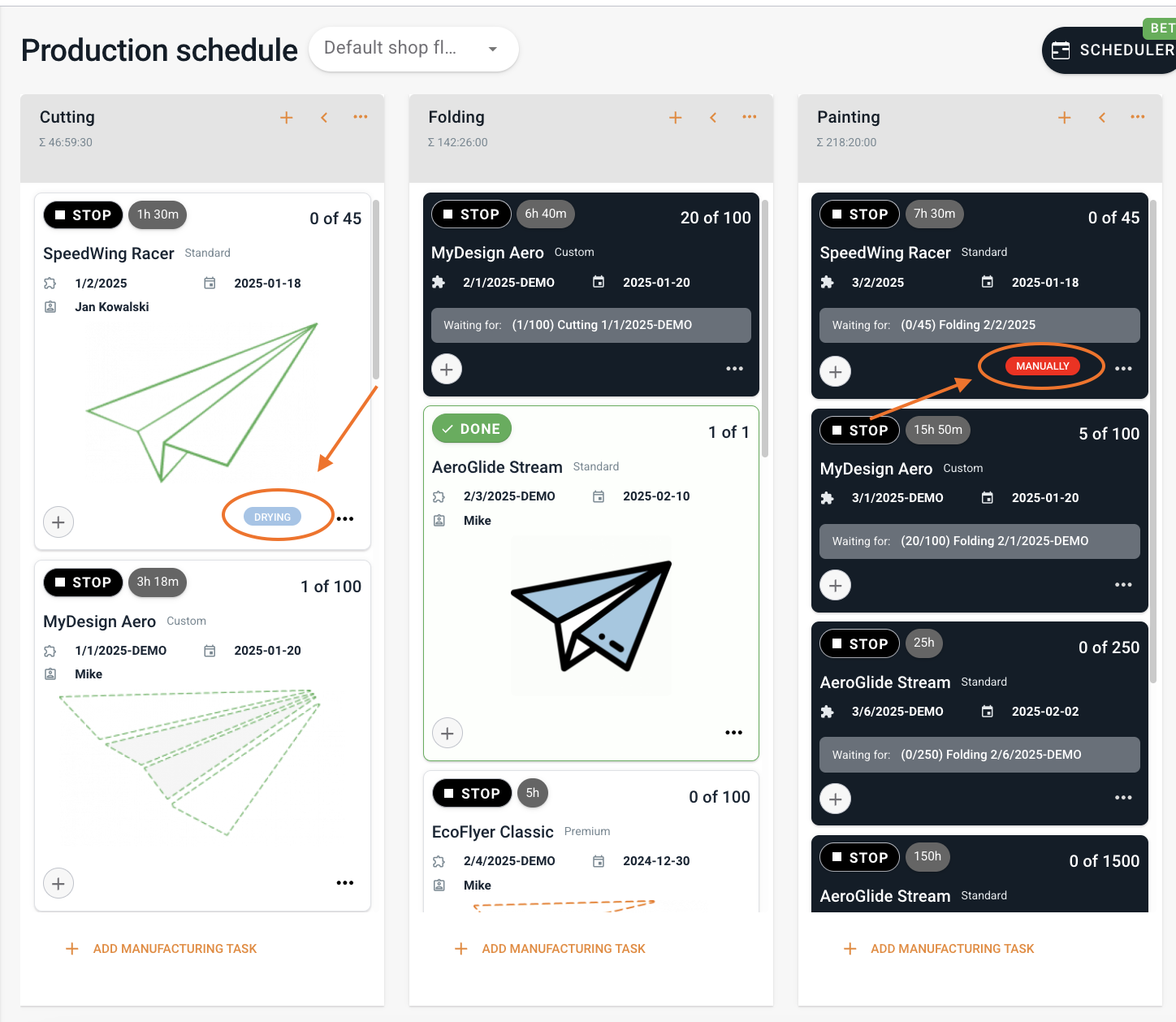
🛠️ How to Add and Use Tags in Prodio?
Tags are super easy to use! Here’s how to create and apply them:
1. Adding Tags
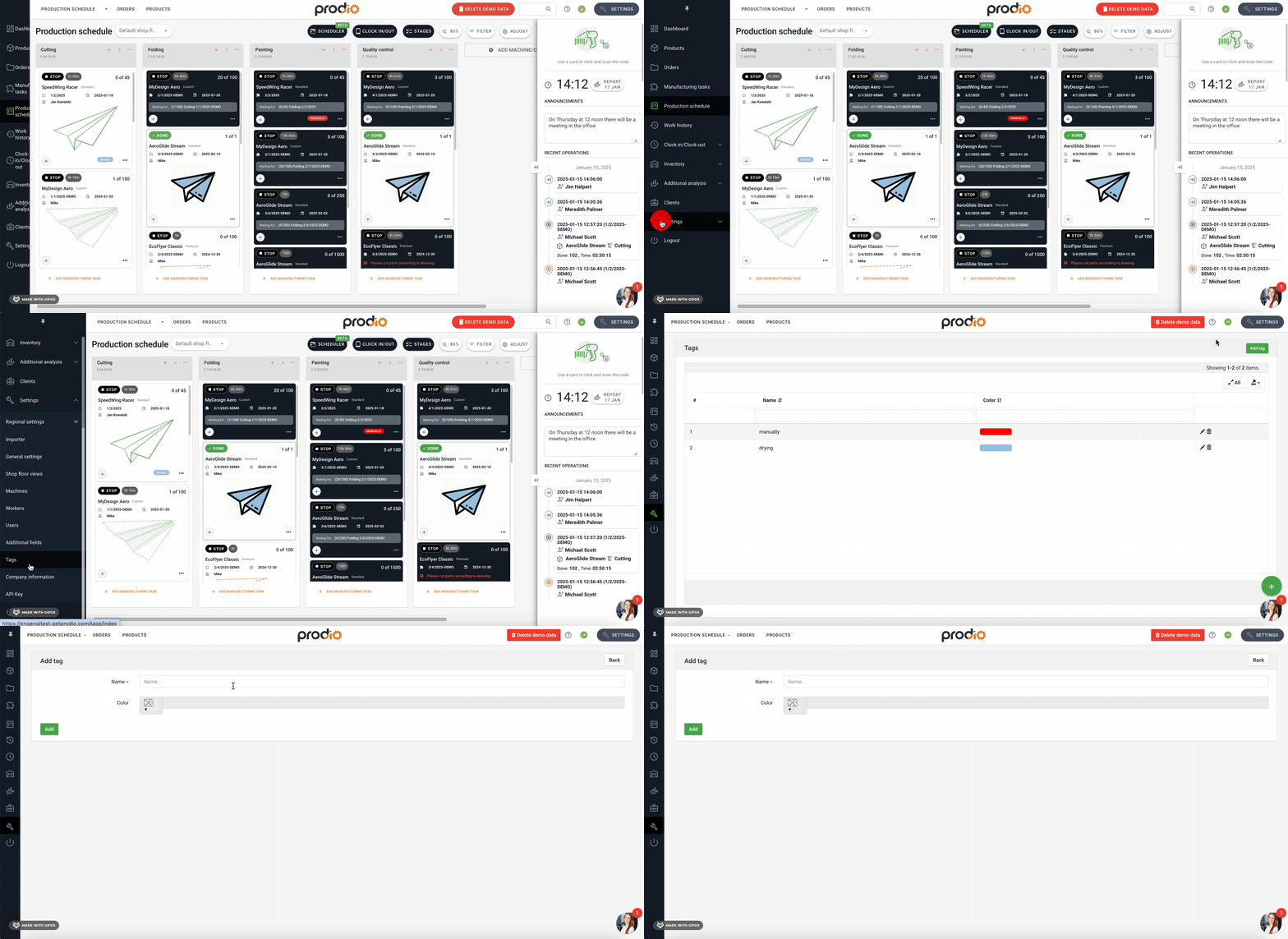
Go to the menu on the left side and select Settings → Tags.
Click the green “Add Tag” button.
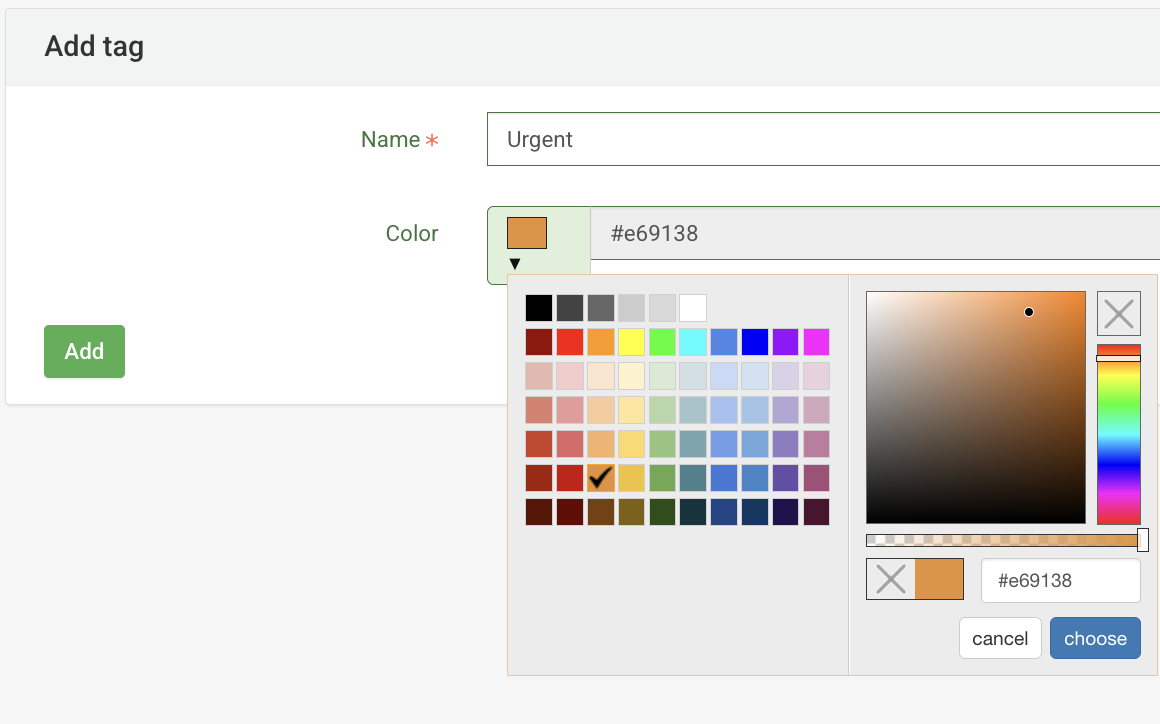
Enter the name of the tag and assign it a color for better visibility.
2. Assigning Tags to Operations in Product Technology
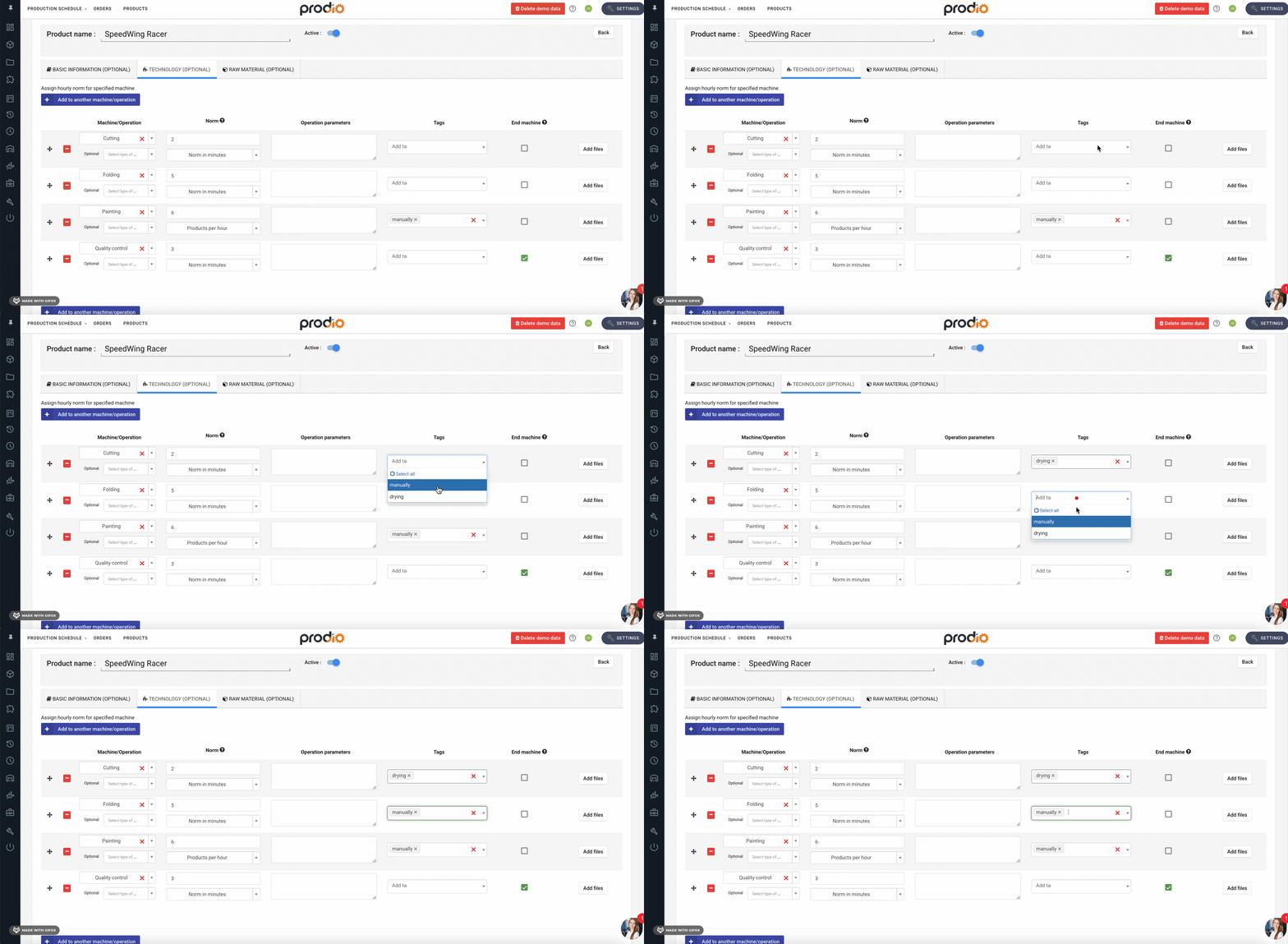
Go to Products → Add Product.
In the Production Technology section, find the Tags option.
Choose the appropriate tag from the list and assign it to the operation.
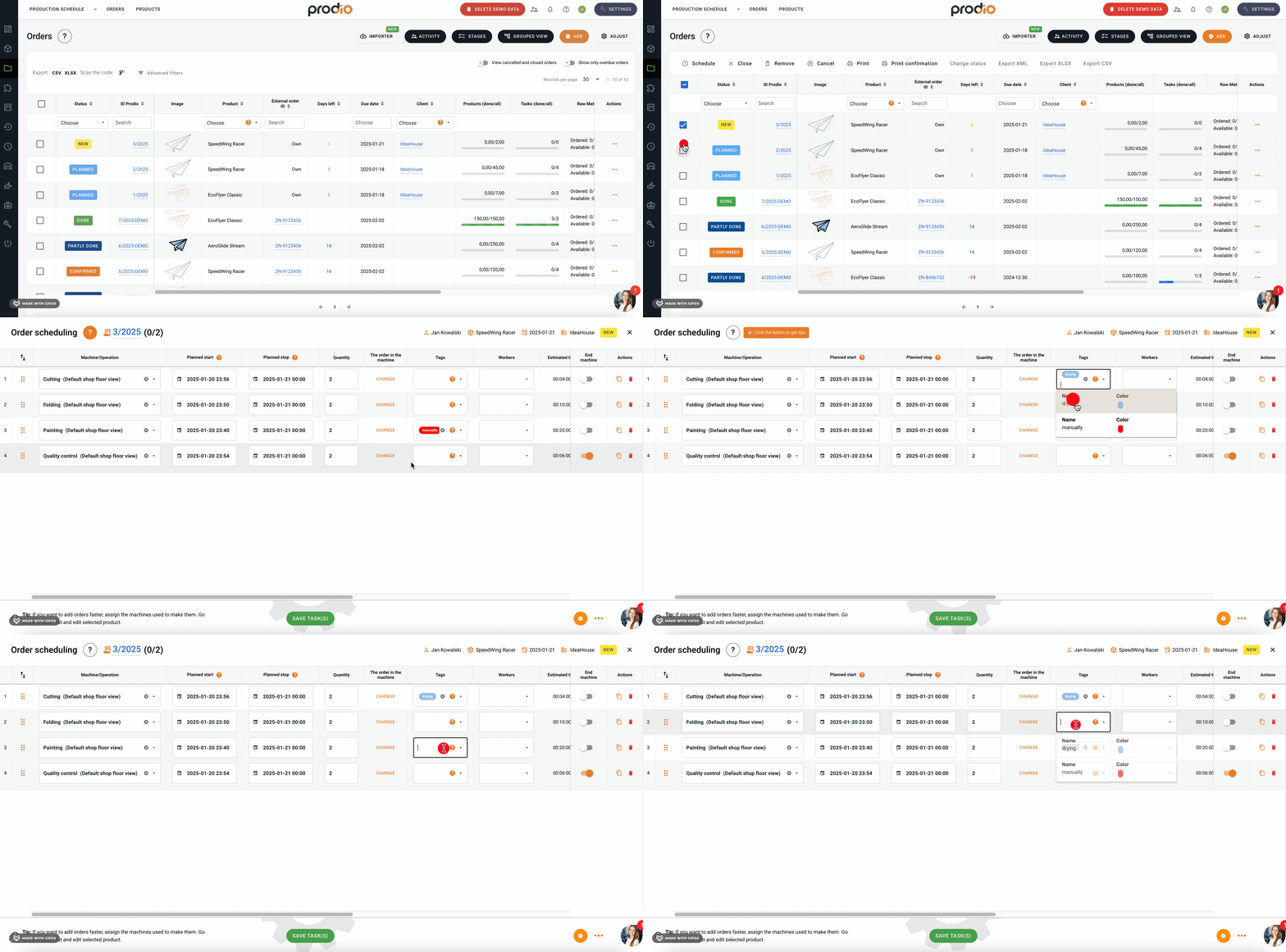
3. Adding/Editing Tags While Planning an Order
Click on the order and then select Plan.
In the Tags section, choose the tag you want to assign to the operation.
👀 How Do Tags Help in Work?
Once tags are assigned, they will appear as colorful markers on the order tile. This way:
Employees can quickly spot urgent tasks.
You can easily specify where and on which machine a task should be performed.
You reduce the risk of mistakes, as everything is clear and easy to understand.
High five 🙋♀️ - team Prodio!
Prodio is a user friendly production planning software for small manufacturers