
Stages view

In this article, you'll find information about where the view of the stages is located and how to work with it.
The stages view is accessible from the orders section, manufacturing tasks tab and production schedule. Click the 

How does it work?
The stages view allows you to verify, per order, at which production stage a particular order is, thanks to a direct view of the machines where the tasks for that order are being carried out.
For instance, the example below shows that the first task is completed, but the next one on another machine has a 'pause' status because the worker took a break.

You can also narrow the data to a specific reporting panel of interest. Just choose it from the list.

Of course, you can filter the table by the order data and the status of the manufacturing task on a particular machine.

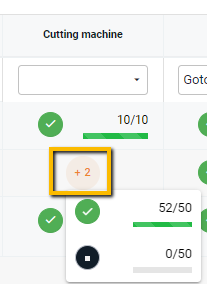
If more than one task needs to be performed for a particular order, information about the number of tasks will be displayed, and by clicking on it, you can view a specific task.
From the stages view, you can perform the same operations as in the orders view through the actions column.

But that's not all; you can also plan a single task for a specific machine for a given order. Just click on the clock icon on that machine, and you'll be immediately directed to the order planning view.

You can also view the details of a single order by clicking its Prodio ID and a grouped one by clicking its external order number.

What does it give you?
Thanks to the stages view, you can easily manage machine workload and precisely plan individual tasks for new and currently-in-production orders.