
Order Statuses

Learn about the different statuses your orders can have and how they work!
WHAT IS IT?
Order statuses show the current stage of an order. Some statuses update automatically as a result of specific actions you perform, while others help you navigate the order list and properly describe your orders.
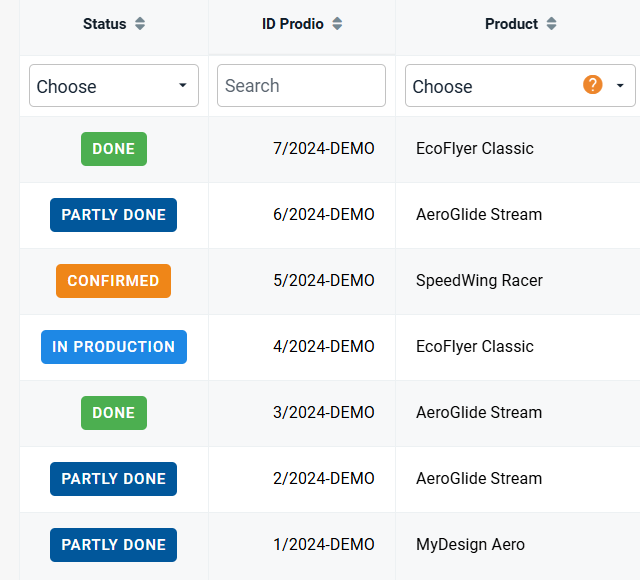
AUTOMATICALLY CHANGING STATUSES
New → The order has been added to the system but is not yet visible in production.
Confirmed → This status is assigned when the 'Confirmed Deadline' field is filled in the Task Card (Edit tab).
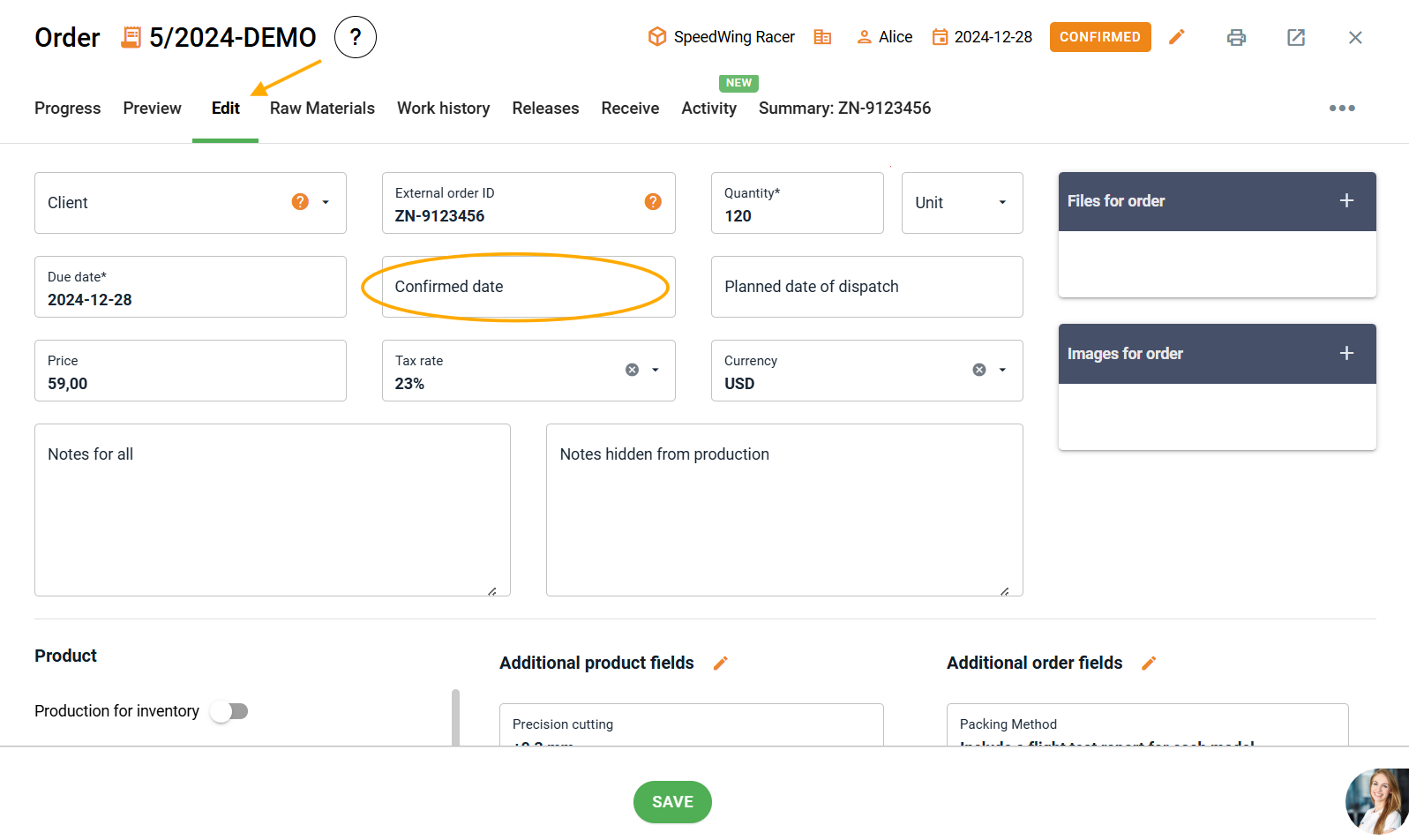
Scheduled → The order has been planned, distributed to specific machines, and is visible on the production panel.
In Production → Work has begun on at least one task within this order.
Partly done → At least one task in the order has a quantity of finished items greater than zero.
Done → The finished quantity of items (marked as “Finished Product”) equals or exceeds the planned quantity.
Closed → This status appears when the order is closed, after which it disappears from the list by default. It can be viewed by toggling ‘Show Cancelled and Closed’ at the top of the Orders tab.
Cancelled → This status appears when the order is canceled, after which it disappears from the list by default. It can be viewed by toggling ‘Show Cancelled and Closed’ at the top of the Orders tab.
MANUALLY CHANGED STATUSES
Manual statuses are those that can only be selected from a list manually. They never appear in the program as a result of other actions. The manually assigned statuses include:
Waiting → Orders waiting for materials, drawings from a technologist, or visualizations.
For shipping → Orders ready to ship, e.g., requiring a courier to be ordered.
Settled → Orders that have already been settled.
Invoiced → Orders for which an invoice has been issued.
Raw Material Ordered → Orders waiting for raw materials.
Raw Material Arrived → Orders that can now be scheduled because the raw materials have arrived.
Cooperation → An order that, for example, was sent to an external company for processing.
#TIP
Automatic statuses can also be assigned manually from the list. However, be careful – if you manually change a status, not all automatic statuses will function correctly.
FREQUENTLY ASKED QUESTIONS
Who can change order statuses?
Statuses can be changed by users with managerial permissions and access to edit orders.
Why is the status still "In Production" even though all tasks are completed?
The program changes the status to "Ready" when the finished quantity (marked as “Finished Product” on the start/stop form) equals or exceeds the planned quantity.
Can I add custom order statuses?
The program does not currently support adding custom statuses. However, don't worry – reach out to us! We’d be happy to hear your feedback to improve our product!
High five 🙋♀️ - team Prodio!
Prodio is a user friendly production planning software for small manufacturers