
Module: Workers at Work

The "Workers at work" module provides a quick and clear overview of employee presence and activity.
With this module, you can easily see who is currently working, who is on a break, and who is absent – all in one place. It’s a convenient tool for daily team management. 😊
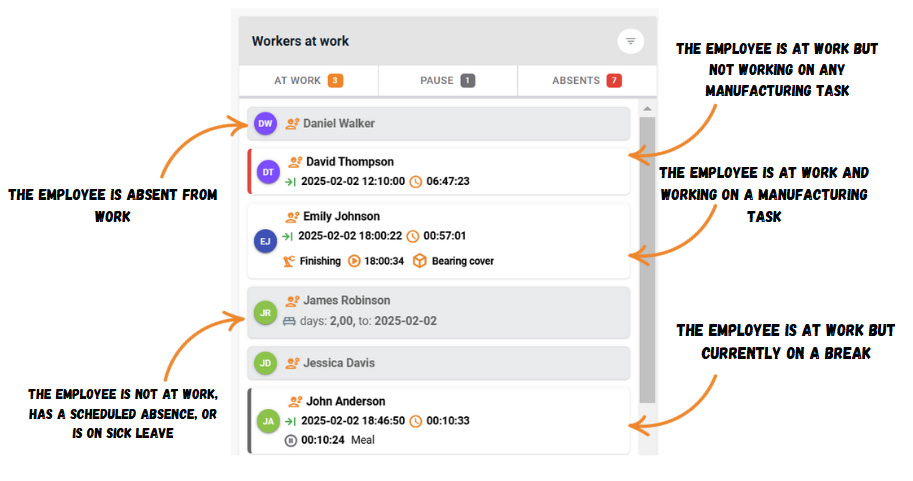
By default, you’ll see a complete list of employees, with clear markings to indicate their current status:
Workers absent from work (gray background, no additional information): Employees who haven’t clocked in.
Workers with scheduled absences (gray background with additional information):
Information about the type of absence (e.g., sick leave, vacation).
Number of days off and the end date of the absence.
Clicking on the tile opens the editing view for the absence.
Workers at work (white background):
Information about the date and time of clock-in and the time spent at work.
A red stripe on the right side indicates that the employee is at work but not assigned to any task.
If an employee is working on a task, you’ll see information about the machine, the start time, and the product they’re working on.
Clicking on the tile opens the editing view for clock-in/clock-out records.
Workers on a break (white background with a gray stripe on the left):
Information about the duration and type of the break (e.g., "Lunch").
If you want to view only workers in a specific status, such as "at work" or "pause" you can use the tabs we’ve prepared: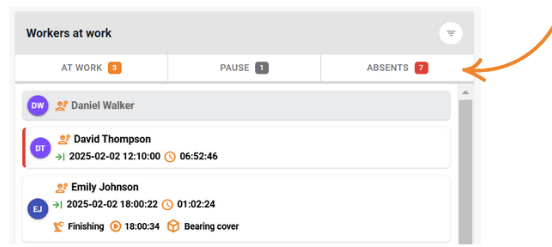
At Work:
List of employees currently present at the company who have clocked in.
Information about the start time of their shift and the time spent at work.
Employees on a break are also included in this tab, marked with a gray stripe on the left side.
Pause:
Employees currently on a break.
Information about the duration and type of the break.
Absent:
Employees who haven’t clocked in for work.
Information about planned absences, such as vacations or sick leaves:
Number of absence days.
End date of the absence.
Employees listed without additional data are likely working on a different shift.
We’ve also added an option to filter the employee list. To do this, click "Filter" in the top-right corner of the module.
Available filters include:
"At work, but not working on any task": Displays workers present but without assigned tasks, so you can assign new duties to them.
"Has a day off": Shows workers with scheduled absences.
"Has Overtime": Displays workers who have exceeded their standard working hours and helps identify those who may have forgotten to clock out.
Examples of filter use:
At work, but not working on any task:
Quickly check who is present but not performing tasks, so you can assign new responsibilities.Has Overtime:
View a list of employees working longer than expected and catch anyone who may have forgotten to clock out.
High five 🙋♀️ - team Prodio!
Prodio is a user friendly production planning software for small manufacturers