
Import Configurations - How to Add and Use Them

In this article, you'll learn how to create import configurations for your data and how to utilize them.
To create import configurations, you'll need a file you've prepared with data or a file generated from other programs.
To add a new configurator, click the Add button.

There's also an option to create a configurator while uploading an import.
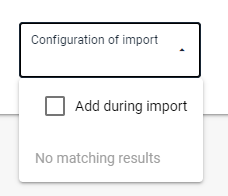
After choosing to create a configurator, a window will open for creating a new configuration.
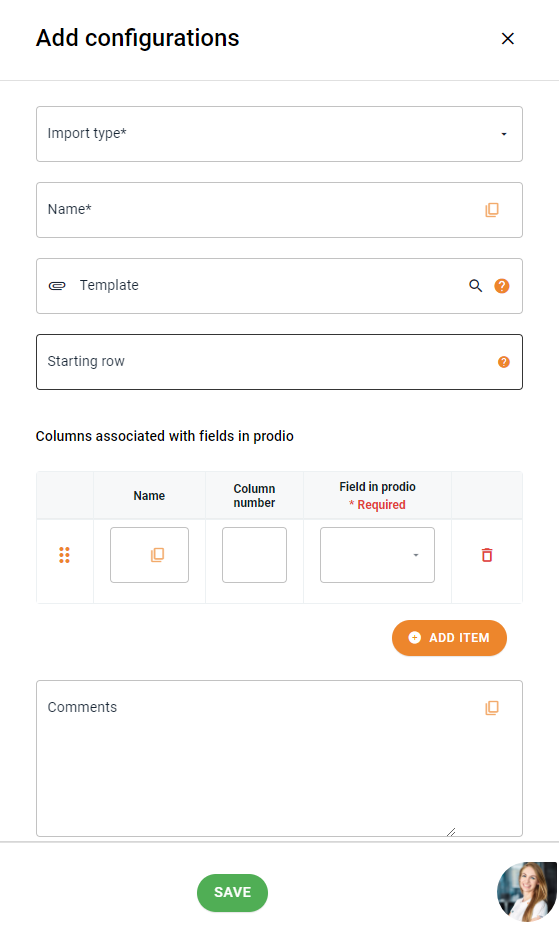
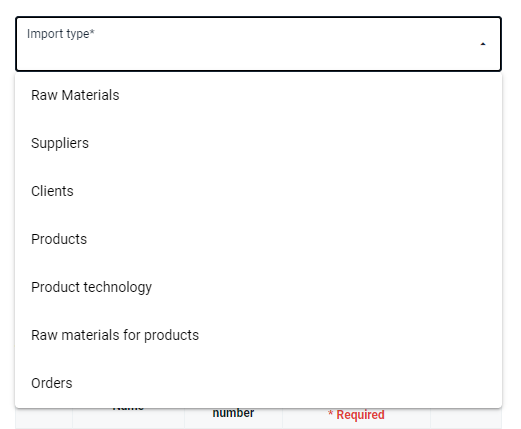
First, decide what you want to import by clicking the import type field and selecting the appropriate data group.
Then, give the configuration/template a name, for example, "New Products."
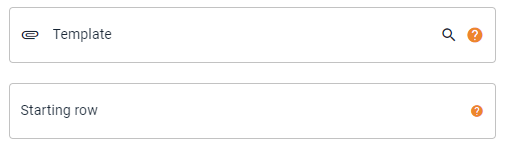
Next, you can select a previously created file, which will automatically pull in the columns. You can also determine from which row the data should be read (if a different raw than the first contains column names, then type the number of the next raw as starting point).
The next step is to link the template columns to the columns in Prodio and determine their order.
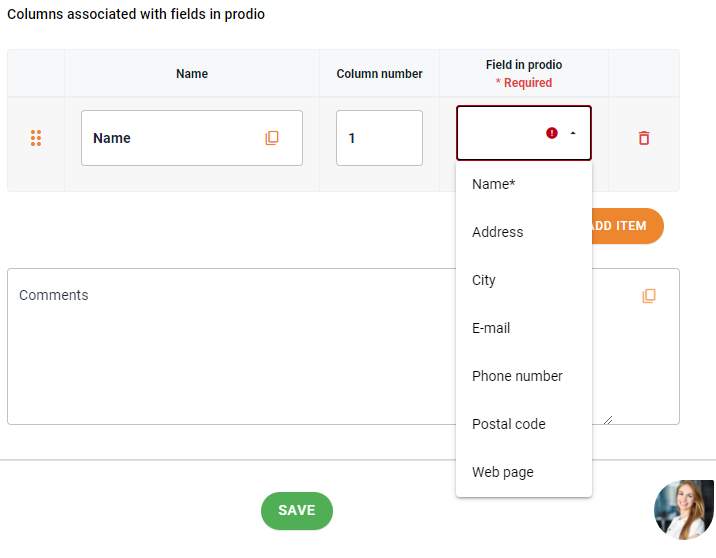
Finally, you can add any notes to your configuration and save it. After saving, the configuration will appear in the configurator table.
Now, you can download the configuration template in XLSX or CSV format, fill it out, and use it when importing data into Prodio!
With the configurator, you don't have to rewrite data into rigid templates; instead, you create your own configurations tailored to the files you've prepared or files generated from other programs.
High five 🙋♀️ - team Prodio!
Prodio is a user friendly production planning software for small manufacturers.