
How to Create a New Dashboard?

Check out how to create and customize your dashboard in the program!
How to Create New Dashboards?
You can add new dashboards and decide which modules should be displayed on them. This is particularly useful when you want to show different information on a TV screen in the office compared to the production floor.
Click the "Adjust" button
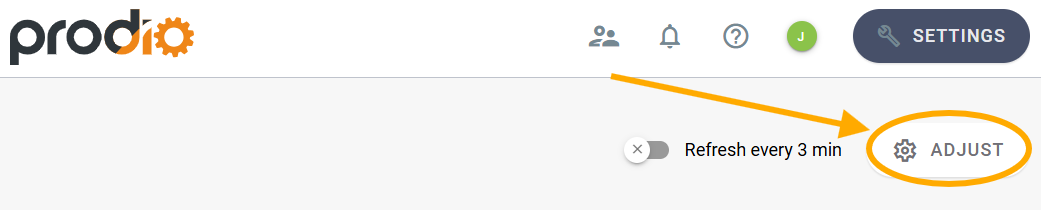
Then "Add Dashboard" to create a new dashboard.
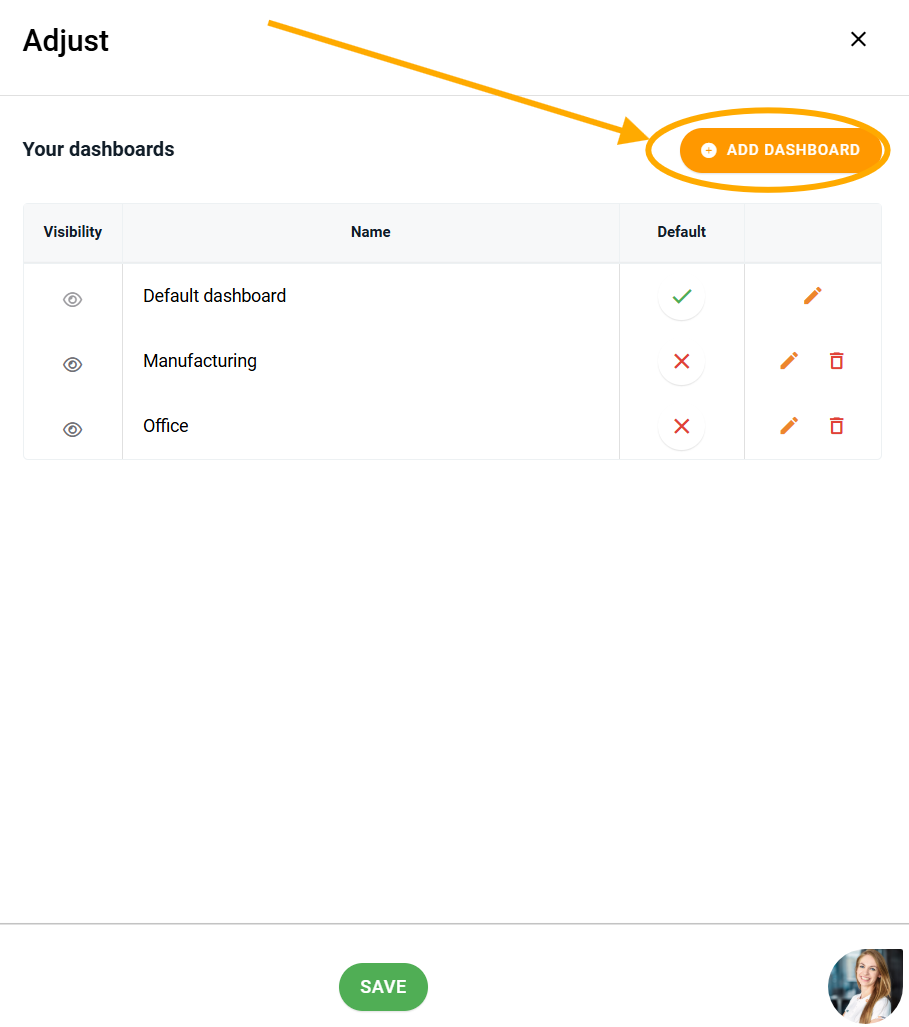
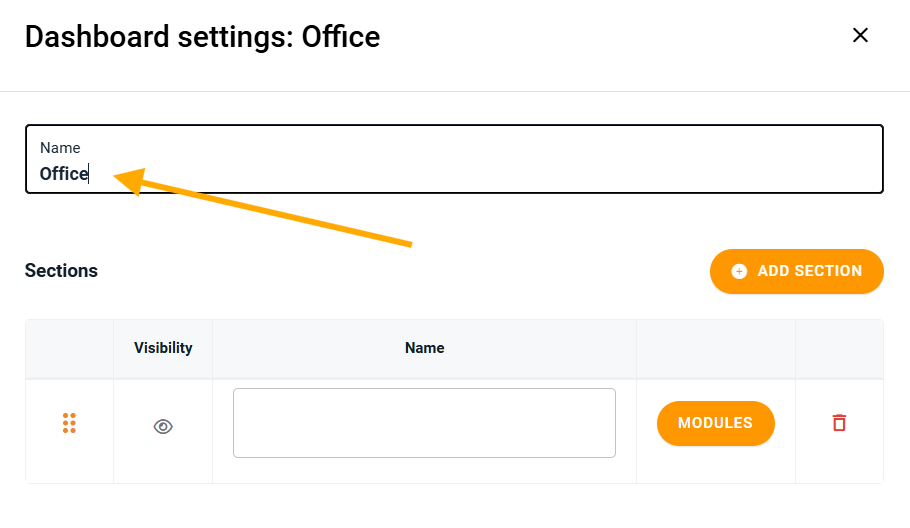
Name your dashboard - for example "Office" or "Production".
Add a Section - Enter a section name that will be displayed as a header above the modules (e.g., "Orders").
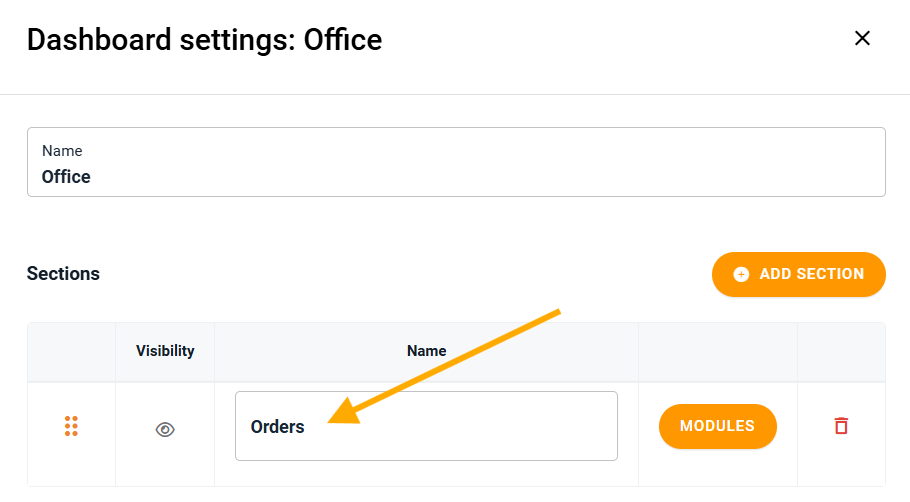
Click the "Add Module" button and select:
The module type (e.g., orders, defective products).
The module width in percentage to adjust it to the dashboard (e.g., 25% or 50%).
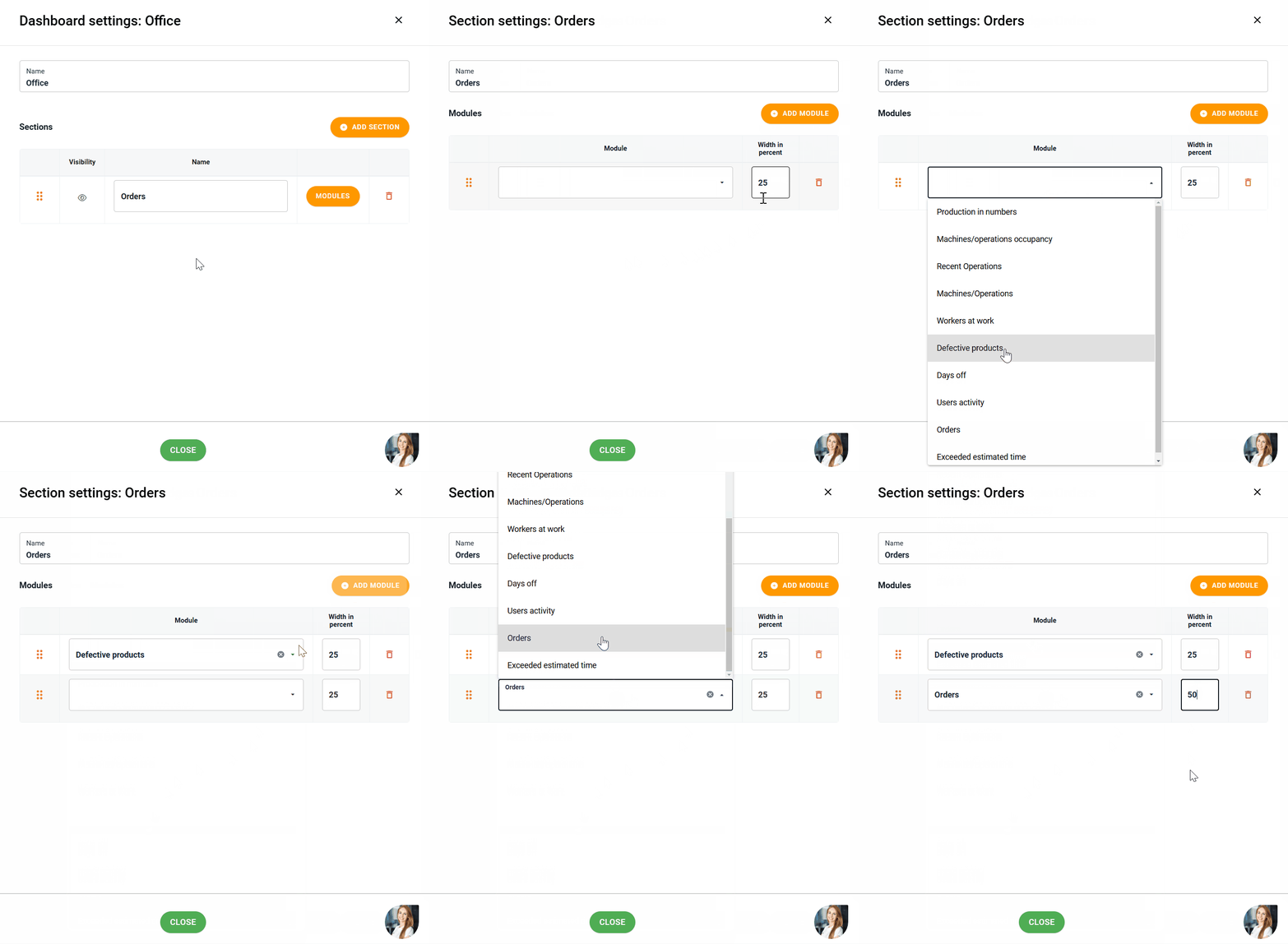
Once you have configured the modules, click "Close", then "Save" to create your new dashboard with the selected settings.
Now, in the top left corner, you'll see a home icon, and next to it, you can switch between dashboards.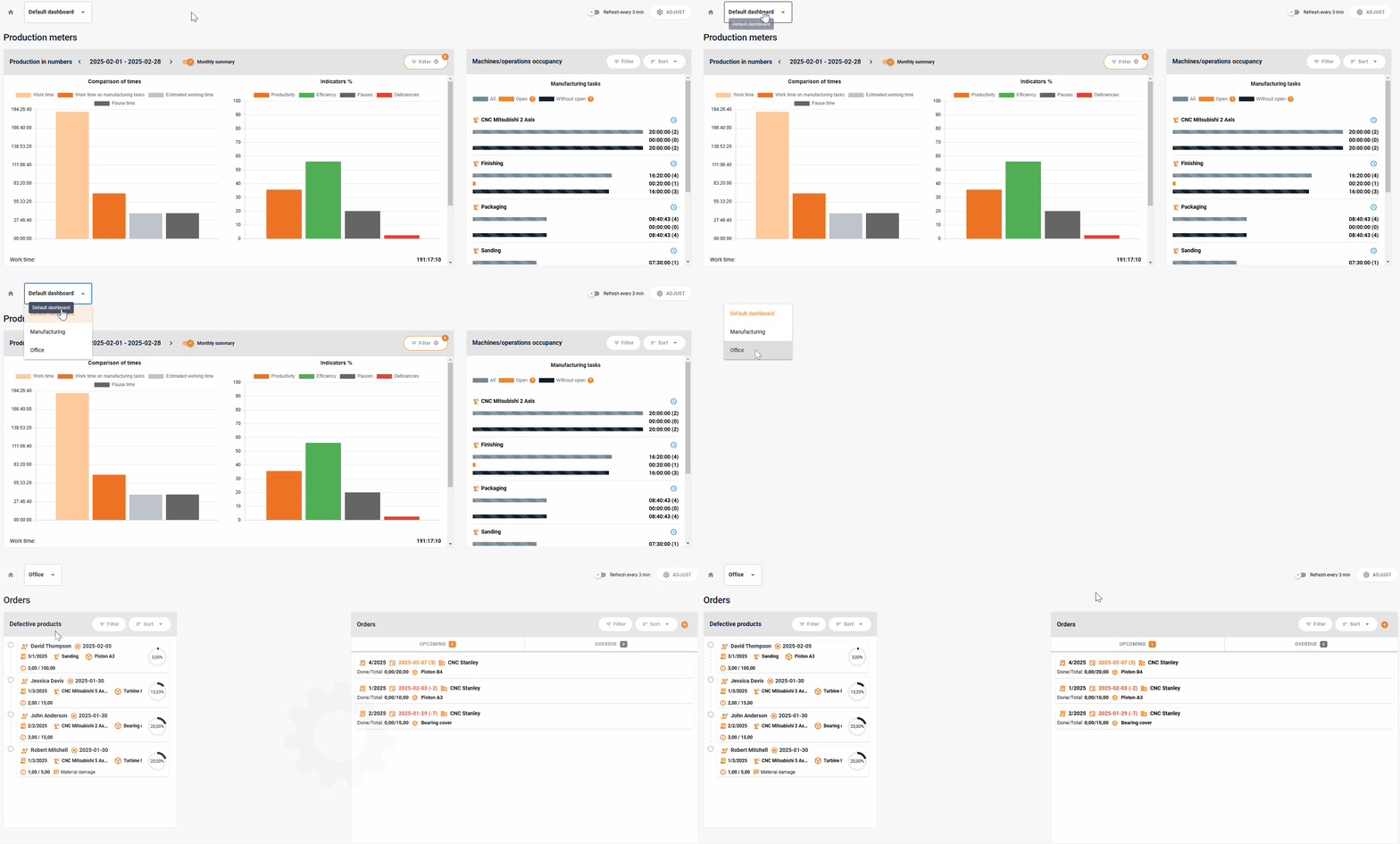
At any time, you can return to the "Adjust" button to edit your dashboards, rename them, add new ones, or remove existing ones.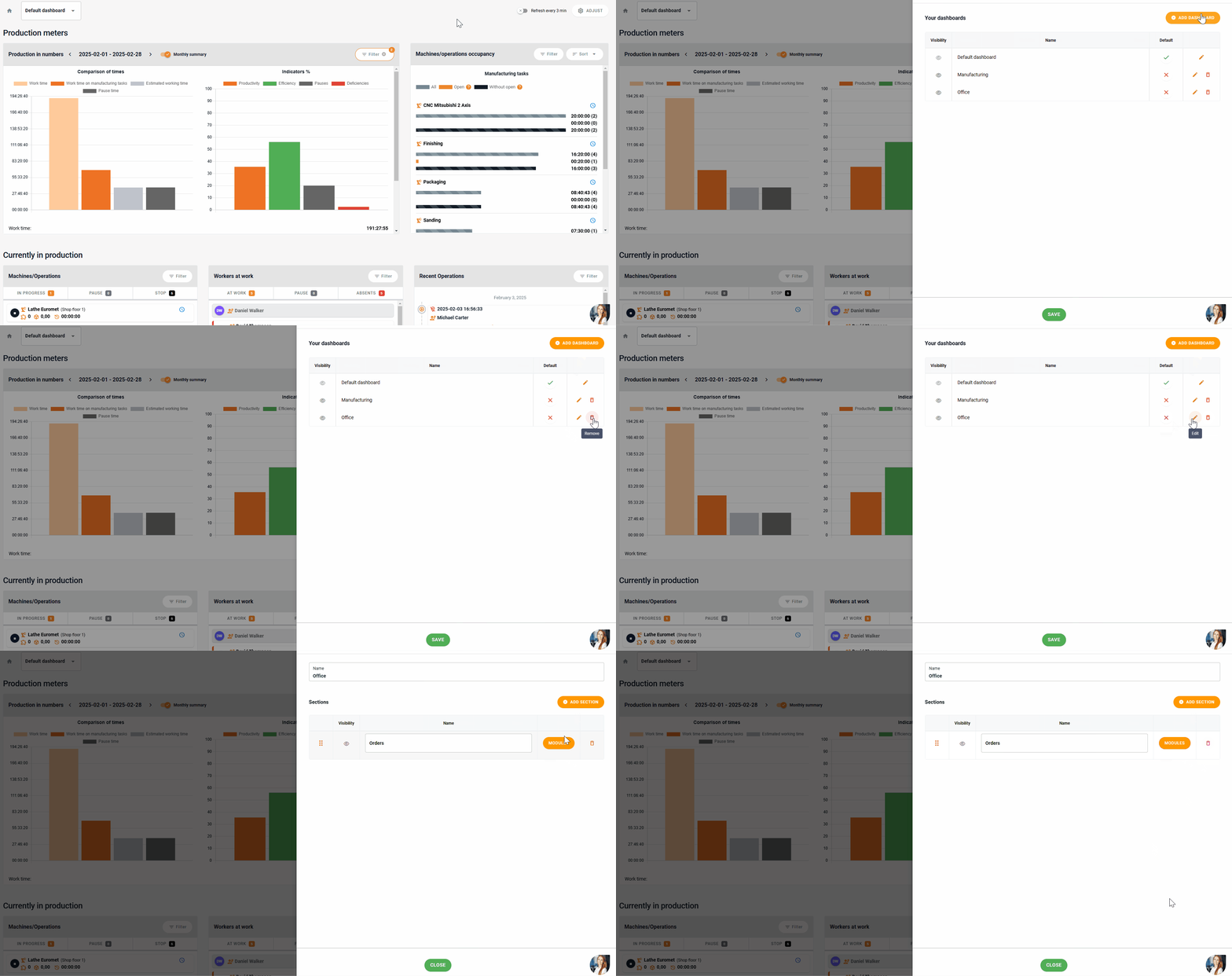
⭐ Key Benefits of Customizing Your Dashboard
✔️ Tailored to Your Needs – Create thematic dashboards for the office, production, or managers.
✔️ Clarity – Hide unnecessary modules and display only the most relevant information.
✔️ Quick Access – Easily switch between views tailored to different areas of your business with sections and multiple dashboards.
High five 🙋♀️ - team Prodio!
Prodio is a user friendly production planning software for small manufacturers