
Editing clock in/clock out

In this article, you will learn how to edit workers clock-ins and clock-outs, as well as how to manually add them.
Editing Clock in/Clock out
It's very simple! Just select the worker, click on "Actions" in the column, and then choose "Edit clock in/clock out history item."
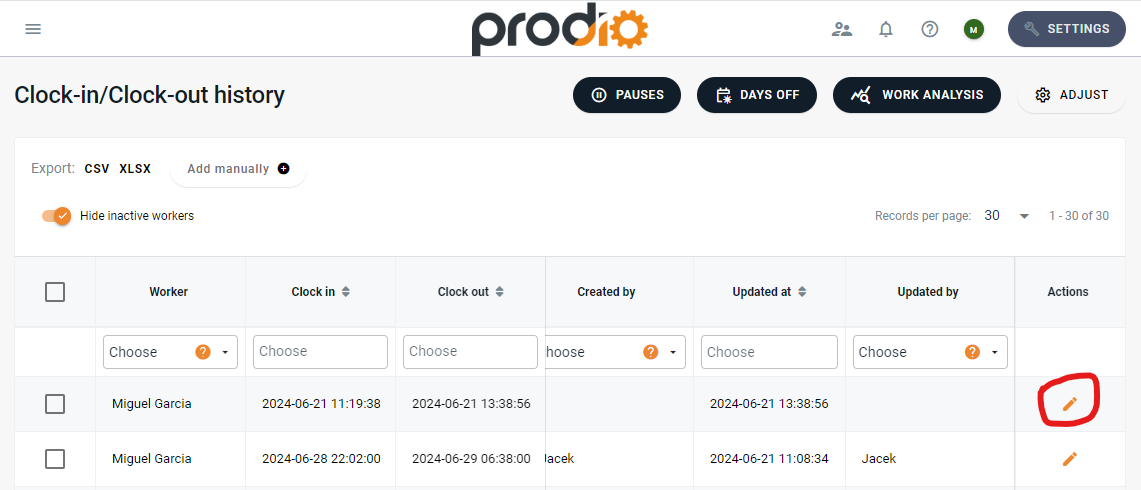

Here, you can edit worker clock in and clock out, view change history, work histories, breaks, and HR data.

How to manually add Clock in/Clock out?
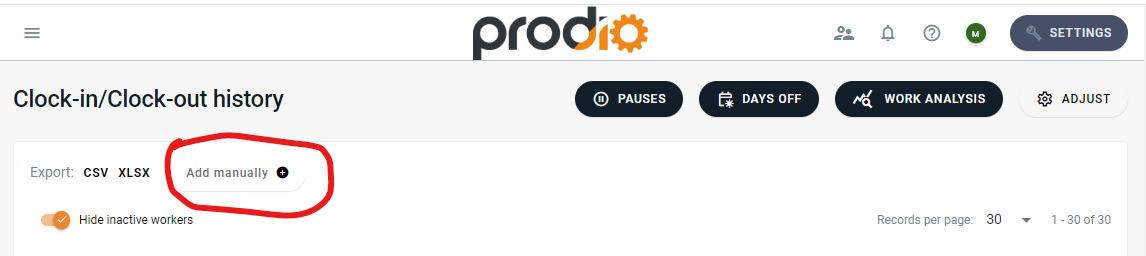
To manually add a clock in, simply click "Add manually" in the top right corner of the page. You will be directed to a page where you can select the worker and manually add the date, clock in time, and clock-out time.

Where to check who nade the manual entry?
As mentioned earlier, when someone manually adds a clock-in and clock-out for a worker upon entering the edit mode of that worker, you will see an orange-highlighted message indicating that the entry was added manually, along with the name of the person who added it.

High five 🙋♀️ - team Prodio!
Prodio is a user friendly production planning software for small manufacturers.